The history of everything you've done to your home
New roof in 2022, repainted bedroom last spring, a new bathroom in 2017. Keep a record of every project, so you know exactly what was done and when — no digging through old invoices.

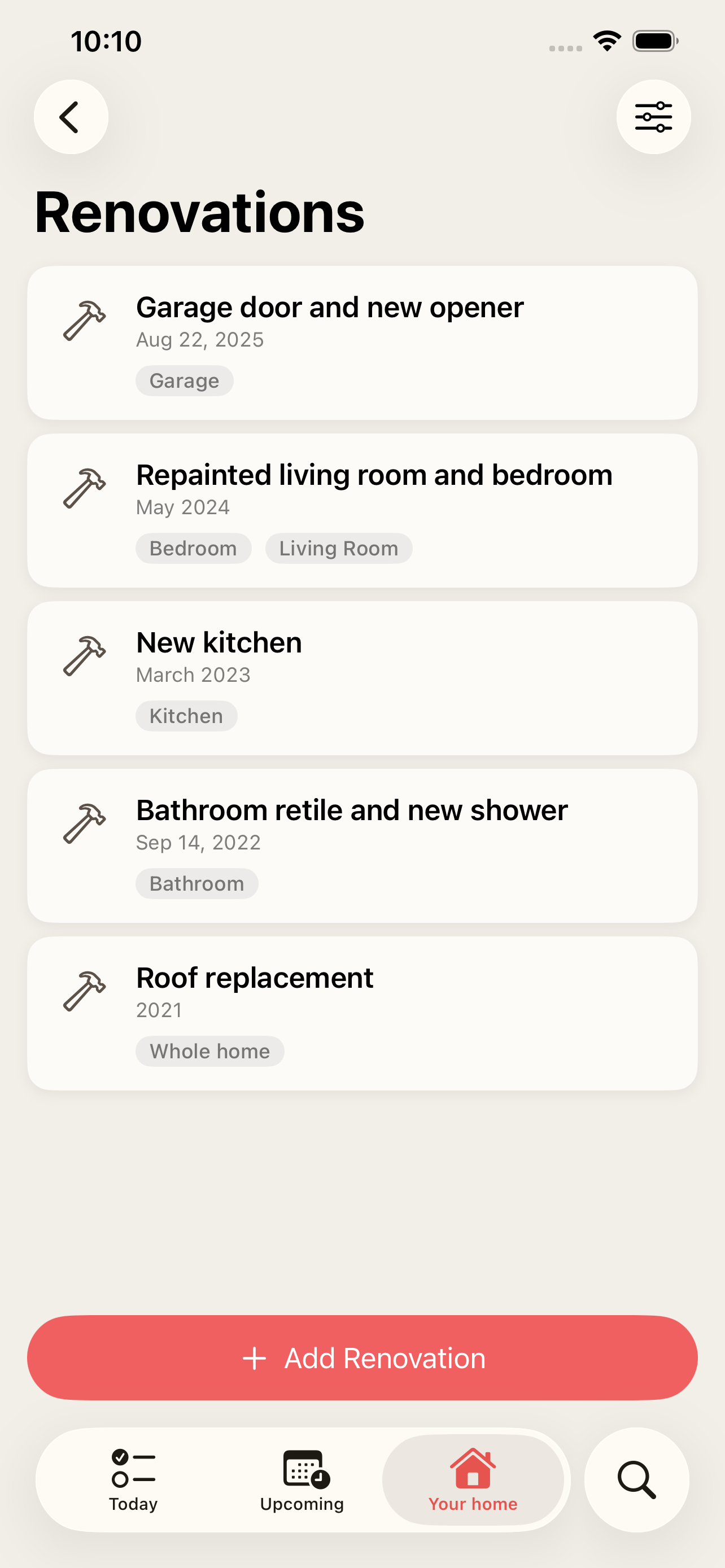
A timeline of your home
Every renovation on one timeline, newest first — filter by area to see the whole story of the kitchen or the garden.
Honest dates
Only remember the year? Save it as "2017". Dates can be as precise as you know them: year, month or day.
Rooms or the whole home
Link a project to one or several areas, or to the whole home for things like a new roof.
Cost, notes and photos
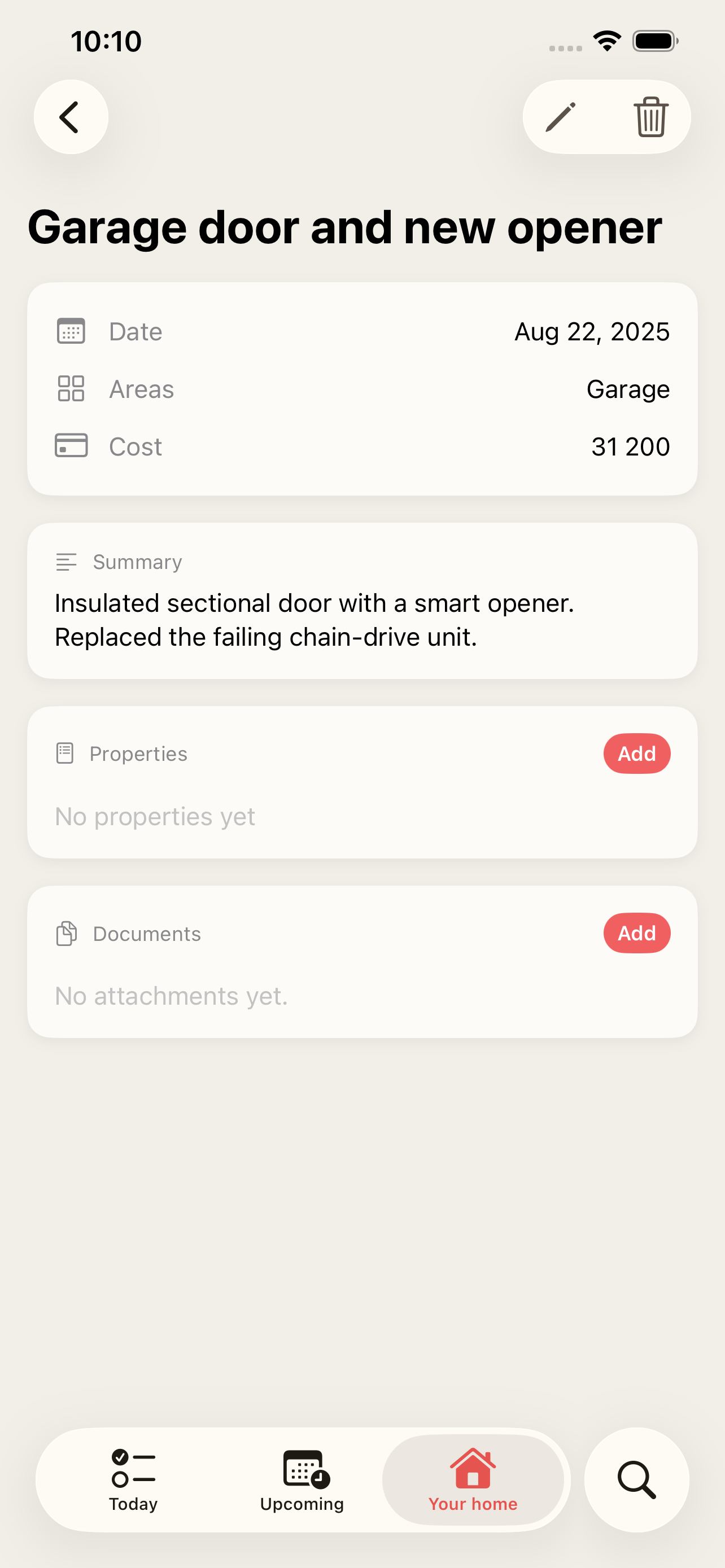
Add what it cost, a summary, your own properties like contractor or paint colour — and on the Max plan, invoices and before-and-after photos.
How it works
-
1
Open Renovations under Your home and add a project.
-
2
Give it a title, a date and the areas it covered — or mark it as whole home.
-
3
Add the cost, a summary and details such as contractor or materials.
-
4
Attach invoices and photos (Max plan), and find it again on the timeline or in the area.
Frequently asked questions
Can I add old renovations?
Yes — that is what it is made for. Add them afterwards with whatever date you remember, even just the year.
How is a renovation different from a task?
Tasks are recurring or planned work. A renovation is a one-off project that has happened and is worth remembering, like a new roof or a new kitchen.
Can I attach invoices and photos?
Yes, on the Max plan. See pricing.
More features
Recurring home maintenance tasks with reminders
Set up home maintenance once as recurring tasks. HomeTendr reminds you when filters, gutters and smoke detectors are due — and keeps the schedule going.
Warranties, manuals and receipts — per item
Register appliances and other things in your home with brand, model, serial number and warranty date, and keep receipts and manuals attached to each one.
An AI assistant that knows your home
Ask what needs attention, get maintenance suggestions based on your own home and approve them with a tap. The HomeTendr AI assistant is included in every plan.