Your home's tasks on the Home Screen, Lock Screen and Mac
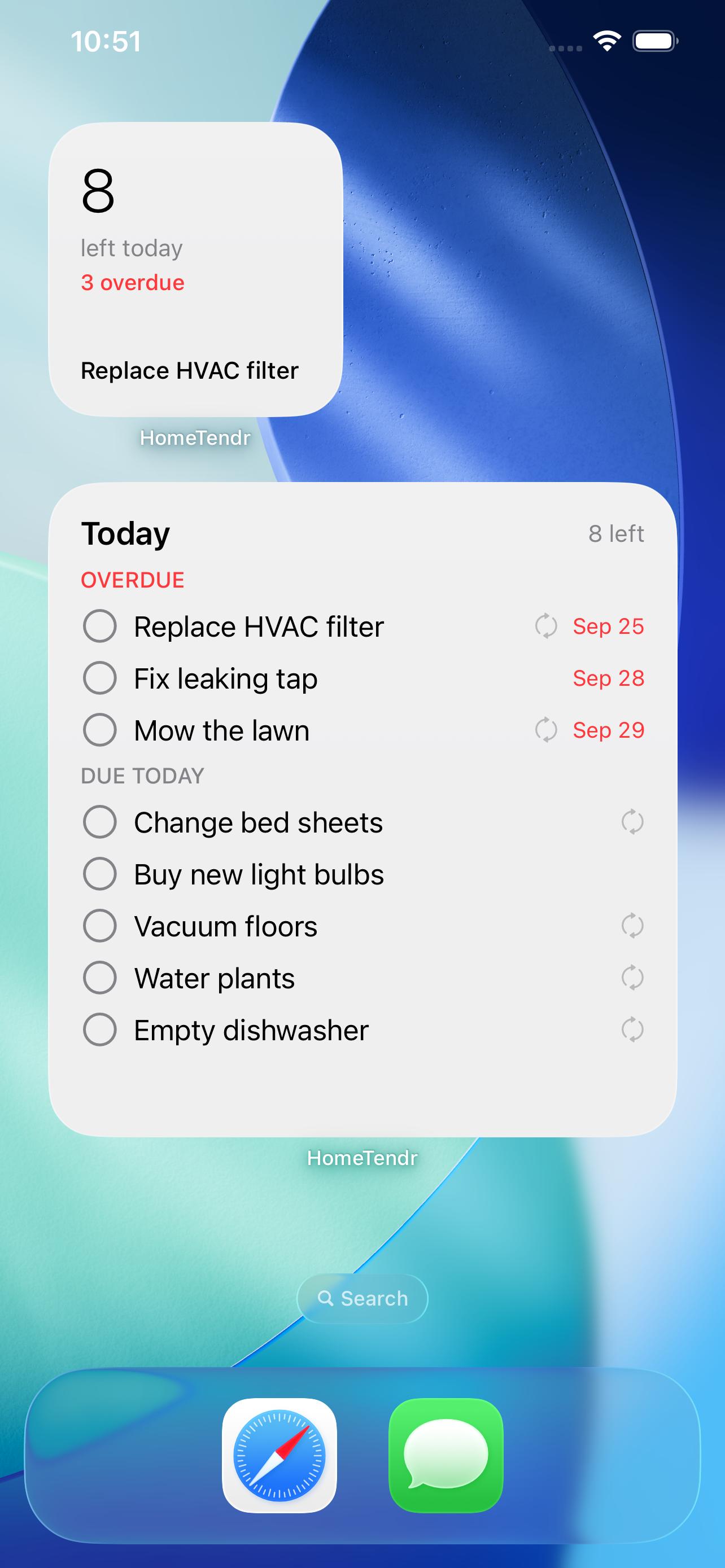
HomeTendr's widgets show what needs doing today, what's coming up this week and how your home is doing — without opening the app. Tick a task off with one tap, right on your Home Screen.

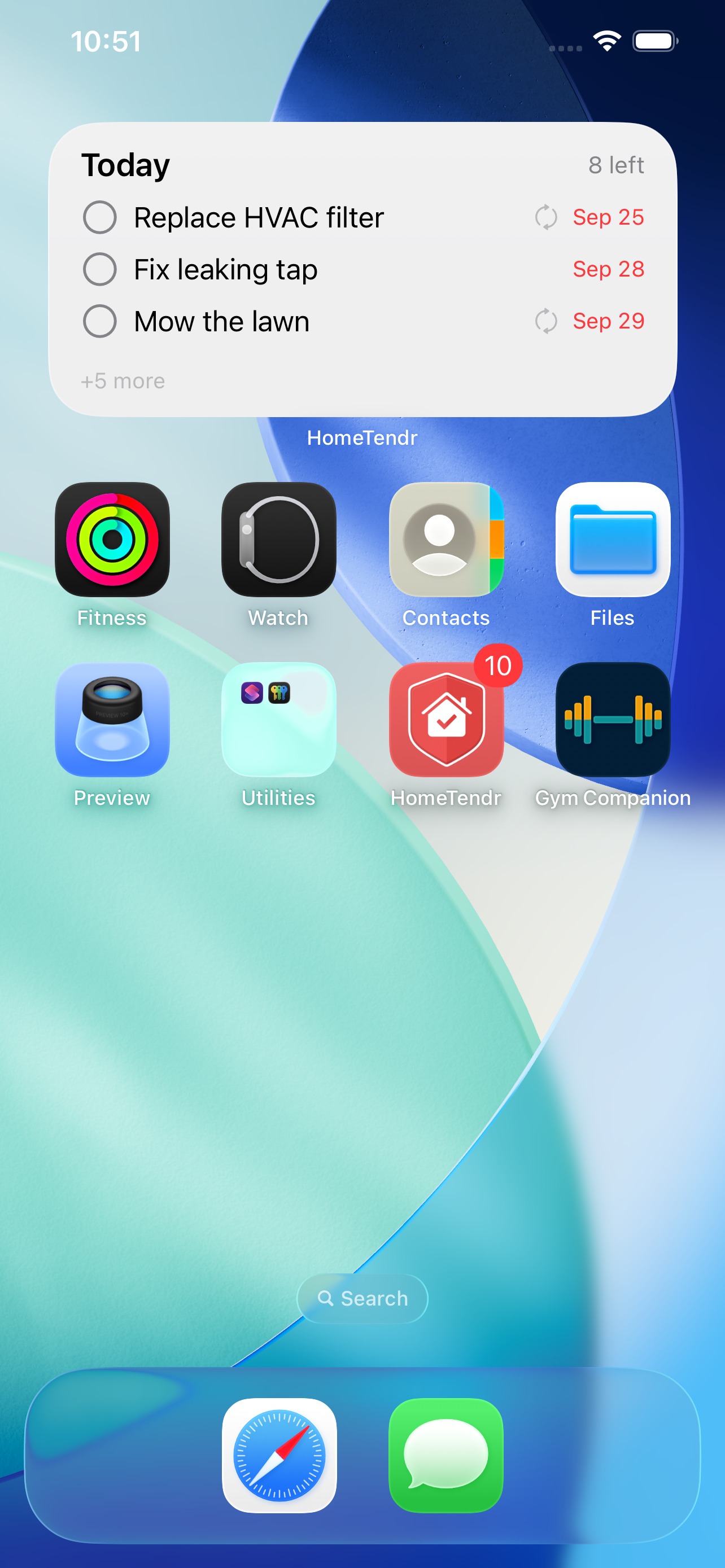
Tick off tasks in the widget
Tap the circle next to a task and it's done. Recurring tasks move on to their next date, and the rest of the household sees it in the activity log.
The week ahead
The Upcoming widget lists the next seven days, grouped by day. Tap a task to open it, or the heading to jump to Upcoming in the app.
House health at a glance
The House health widget shows the same status as the app: overdue maintenance and warranties running out within 30 days. Work due later is shown, never flagged.
Your home, your rooms, your tasks
Choose which home a widget shows, narrow it to areas or labels, or show only the tasks assigned to you. Each widget keeps its own settings.
How to add a widget
-
1
Touch and hold an empty spot on your Home Screen, tap Edit and then Add Widget.
-
2
Search for HomeTendr and pick Daily, Upcoming or House health, then a size — or add one to your Lock Screen.
-
3
To filter it, touch and hold the widget and tap Edit Widget: pick a Home, set Show to My tasks, or choose Areas and Labels.
-
4
For a one-tap way to add tasks, add the New Task control to Control Center or the Lock Screen, or set it as your Action button in Settings → Action Button.
-
5
On a Mac with macOS Sonoma or later, turn on Use iPhone widgets in System Settings → Desktop & Dock, then Control-click the desktop and choose Edit Widgets.
Frequently asked questions
Which widgets and sizes are there?
Daily (small, medium and large, plus round, rectangular and one-line widgets for the Lock Screen), Upcoming (medium and large) and House health (small, medium and rectangular on the Lock Screen). There is also a New Task control for Control Center, the Lock Screen and the Action button.
Can a widget show only one room or label?
Yes. In Edit Widget, choose one or more areas or labels. Picking an area includes the areas inside it. If you later delete that area or label, the widget simply shows all tasks again.
I'm in more than one home. Which one does the widget show?
The home that's active in the app, unless you pick another one under Home in Edit Widget. You can have one widget per home side by side.
Does the widget work on a Mac?
Yes. With macOS Sonoma or later, iPhone widgets can be placed on your Mac desktop. Your iPhone needs to be signed in with the same Apple Account and be nearby or on the same Wi-Fi network.
Which plan do I need?
None — the widgets and the New Task control are included on every plan, including Free. See pricing for what the plans add.
More features
Recurring home maintenance tasks with reminders
Set up home maintenance once as recurring tasks. HomeTendr reminds you when filters, gutters and smoke detectors are due — and keeps the schedule going.
Warranties, manuals and receipts — per item
Register appliances and other things in your home with brand, model, serial number and warranty date, and keep receipts and manuals attached to each one.
The history of everything you've done to your home
Log renovations and bigger home projects with date, cost, rooms, notes and photos, and see them on a timeline — perfect when you sell your home.